Lumia Stream MCP Server
Connect an AI assistant to Lumia Stream and it can run your stream with you. You talk normally; it reads your setup and calls the right tool.
"I just died. Flash my lights red and bump my death counter."
"Watch for the next follower and thank them by name."
"Make a !socials command that links my Twitter and TikTok."
What it can do
| Capability | What that means |
|---|---|
| Read your setup | Your commands, alerts, lights, studio scenes, and TTS voices — so it uses your real names, not guesses. |
| Control lights and studio | Colors by hex, RGB, or temperature, with brightness, transitions, and duration. Scenes, themes, and animations by name. |
| Trigger commands and alerts | Run any configured command, or simulate any alert to test an overlay without waiting for a real event. |
| Talk and moderate | Post to chat, speak through TTS, shout someone out, translate, ban, timeout, and manage VIPs and mods. |
| Manage the stream | Title and category, clips, markers, announcements, ad breaks, chat modes, polls, predictions, and song requests. |
| Drive overlays and variables | Show, hide, move, resize, and set overlay content. Read and write the variables your overlays are bound to. |
| React in real time | See chat, follows, subs, bits, raids, donations, and heart rate as they land — and wait for the next one. |
| Everything else | run_actions executes any Lumia action, overlay action, HTTP request, integration, or plugin, with delays and branching. |
That's 43 tools in total. The server is a thin wrapper over Lumia's local Send API and event stream — Lumia still does the real work; MCP just gives your assistant a structured way to ask.
What is MCP?
The Model Context Protocol is a standard way for AI assistants to use external tools. If you use Claude Desktop, ChatGPT Desktop, Codex, or Cursor, your client already speaks it. Adding the Lumia server is a one-time config paste — see Client setup for the exact steps for each.
Before you start
- Lumia Stream running on a machine the MCP client can reach.
- The Developers API enabled in Settings → API.
- Your API token from that same page.
- Node.js 20 or newer, if you use the
npxsetup below.
Step 1: Get your token
- Open Settings → API in Lumia Stream.
- Check Enable Developers API.
- Copy one of the MCP configs:
- Copy MCP Config (No Install) for the embedded HTTP setup.
- Copy MCP Config for the
npxsetup.
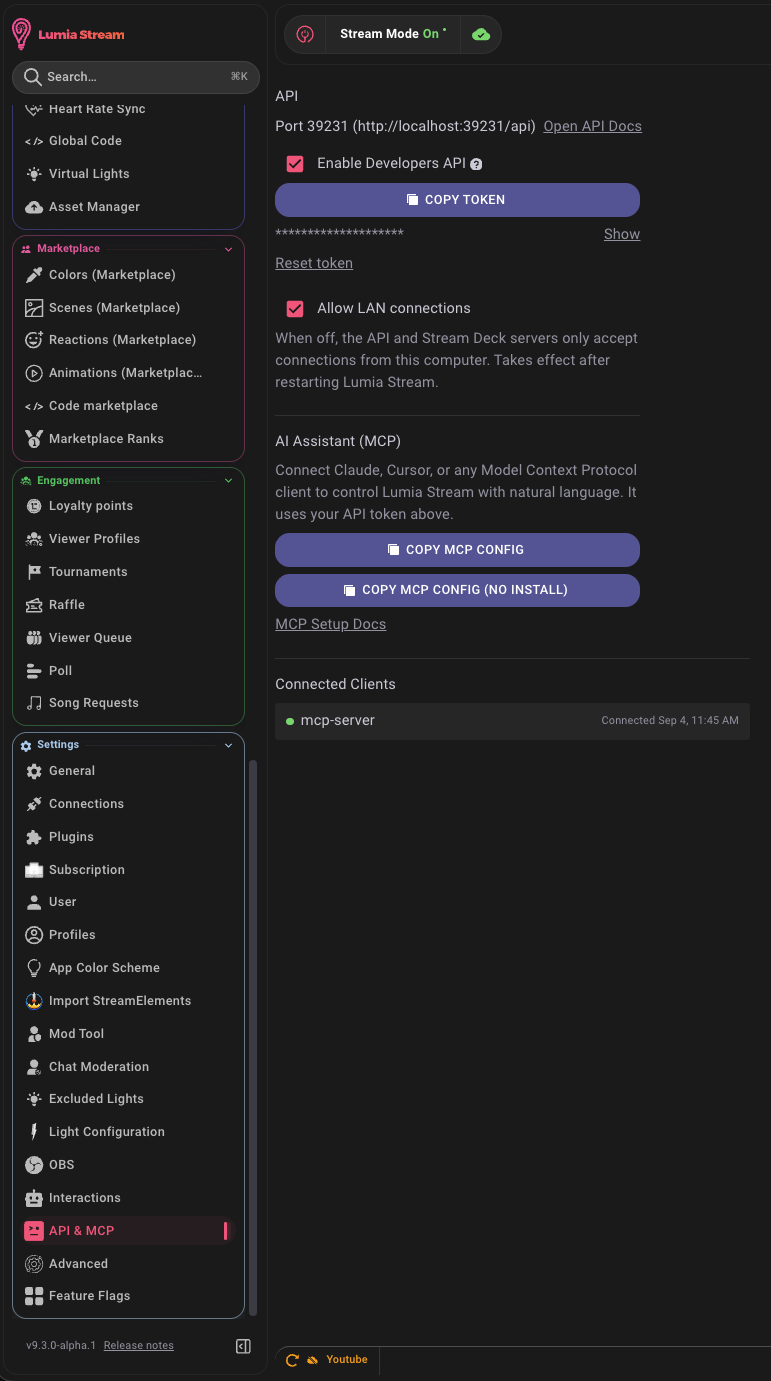
MCP uses the same token as the REST API. Don't commit a real token to .mcp.json, .vscode/mcp.json, ~/.codex/config.toml, or any shared project file. Use placeholders or environment variables in anything you share.
Step 2: Pick a connection
Both options expose the same tools. Take the first one your client supports.
| Embedded HTTP | npx | |
|---|---|---|
| Use it when | Your client accepts an MCP server URL with headers, and Lumia shows Copy MCP Config (No Install). | Your client only launches local servers, you're on an older Lumia version, or headers are awkward to configure. |
| Needs | Nothing extra. | Node.js 20+. |
| Updates | With the Lumia app. | From the published @lumiastream/mcp package. |
Embedded HTTP
{
	"mcpServers": {
		"lumia-stream": {
			"type": "http",
			"url": "http://localhost:39231/api/mcp",
			"headers": {
				"Authorization": "Bearer your_token_here"
			}
		}
	}
}
For Claude Code, it's one command:
claude mcp add --transport http lumia-stream http://localhost:39231/api/mcp --header "Authorization: Bearer your_token_here"
npx
{
	"mcpServers": {
		"lumia-stream": {
			"command": "npx",
			"args": ["-y", "@lumiastream/mcp"],
			"env": {
				"LUMIA_TOKEN": "your_token_here",
				"LUMIA_PORT": "39231"
			}
		}
	}
}
Every client boils down to the same four values: command npx, arguments -y and @lumiastream/mcp, and LUMIA_TOKEN in the environment.
The snippets use the default port, 39231. If your API settings page shows a different port, update both the URL and LUMIA_PORT.
Step 3: Verify
Restart or refresh your MCP client, then ask:
"What can you see in my Lumia setup?"
It should call get_settings. If that works, try:
"What's my stream status right now?"
That calls get_state. Both are read-only, so nothing reaches your viewers.
If tools don't appear or calls fail, see Troubleshooting.
Where to go next
- Client setup — step-by-step, with screenshots, for Claude Desktop, Codex and ChatGPT Desktop, and Cursor.
- What you can do — prompts worth trying, and the tool calls behind them.
- Tool reference — all 43 tools with their parameters.
- Configuration — environment variables, headers, and remote hosts.
- Troubleshooting — when something doesn't connect.